For teams who have run BPA and don't know what to do next
Turn a Best Practices Analyzer report into a migration plan
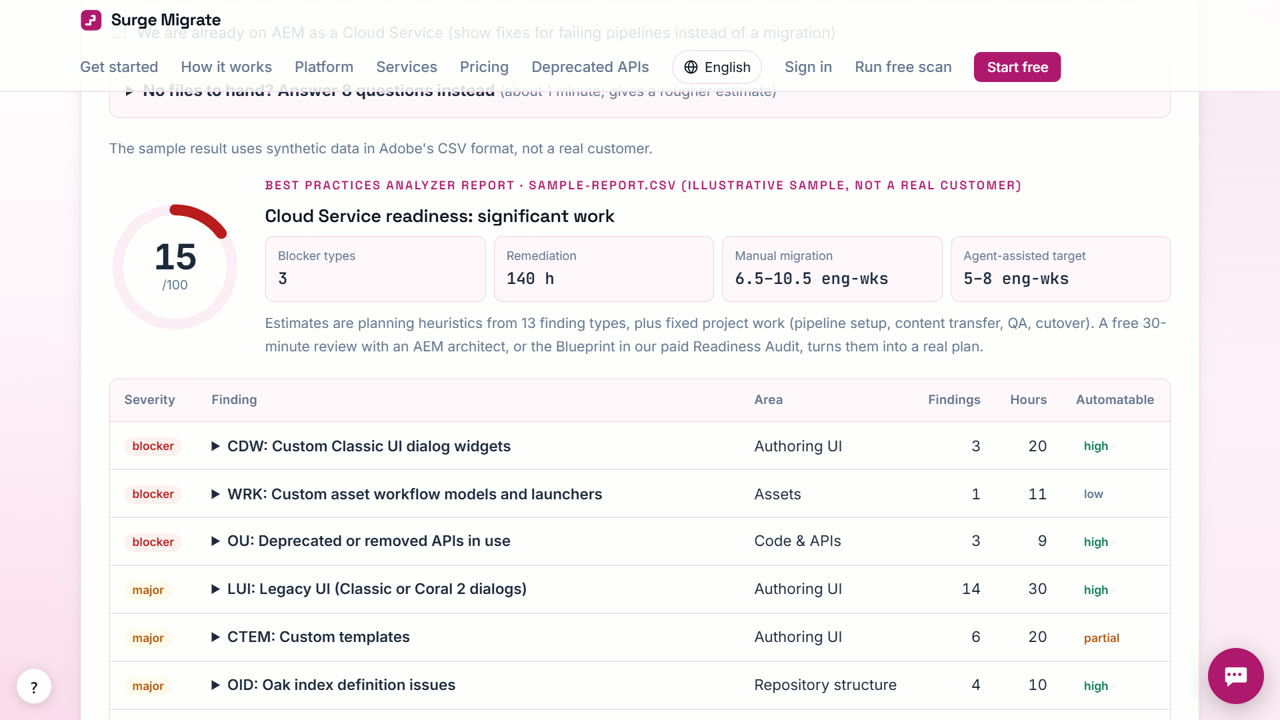
Surge Migrate reads your Best Practices Analyzer CSV in the browser, explains each of its 31 pattern codes in plain words, ranks the findings by severity and effort, and turns them into a Migration Blueprint with phases and decisions.
The problem
A BPA export can list thousands of rows with codes like OAKI, URS or CCL. Teams often stop there, because the CSV does not say which rows block the move, which are automatic, and what they cost.
What to know first
A BPA report is a list of findings, each with a pattern code (for example a legacy component, an unsupported repository structure or a custom index), a subtype, the affected path and an importance level. The codes are Adobe's, and many teams have never seen most of them. Each code has its own page on this site explaining what it means, why it matters for Cloud Service and how it is usually fixed.
How to do it in Surge Migrate
- Export the BPA CSV. In AEM 6.5 open Tools, Operations, Best Practices Analyzer, run it and export the results as CSV.
- Drop it on the readiness scan. The CSV is parsed in your browser. Each row is mapped to its pattern code, grouped and counted.
- Read the explained findings. Every pattern code links to a page that explains what it means, why it blocks or slows the move, and the fix. Effort is added up per finding.
- Create your free account and a project. Press Start free, enter your work email and open the one-time link (there is no password). Name your workspace, then start a project and pick the service and how you want to work. Your first 3 months are free.
- Create the Migration Blueprint. Add the scan to the project and press Create Blueprint. You get phases, effort in hours, risks and the decisions your team must make. Our engineers review and approve it; open it in the browser, save it as PDF or publish it to Confluence.
What you get
- All 31 BPA pattern codes explained
- Findings ranked by blocker and effort
- A combined view when you also scan the code
- A Blueprint built from the report
When Surge Migrate is not the right tool
If you need Cloud Acceleration Manager's own planning views, keep using CAM: Adobe offers no CAM export, so Surge Migrate reads the BPA CSV directly instead.
Questions
Can I import from Cloud Acceleration Manager?
Not yet: Adobe offers no CAM export or API. Upload the BPA CSV instead.
Is the BPA report uploaded?
No. It is read in your browser. Only findings are saved if you add the scan to a project.
Where are the BPA codes explained?
On the BPA codes pages: one page per code with its meaning and fix.
Read next
- Check whether your AEM 6.5 code is ready for Cloud Service
- Estimate the effort and cost of an AEM 6.5 migration
- How to read a Best Practices Analyzer report: every pattern code explained
- Cloud Acceleration Manager: a practical walkthrough
- Surge Migrate vs your own team with Adobe's free tools
- Pricing: free for 3 months, then at cost
Try it on your own code
The readiness scan is free and needs no account. The portal is free for your first 3 months.
Last updated 1 November 2026 · by Venu Gopal Reddy Muvva, founder